Permissions
Permissions provide a way to restrict the abilities of users on device groups. By default non admin users have no permission to view or modify any device group in any way except for the exception of Read Only users (see 12.2). Permission settings consist of five flags which can be set or unset. These are:
- Read. Gives users the ability to view the device group’s page.
- Operate. Gives users the ability to manipulate the group's controls. These users can also add sub groups, add devices and edit devices within the group.
- Schedule. Gives users the ability to assigned schedules of the group by either by removing or adding schedules. Users can also edit the schedule of the group so long as the schedule is not also used by another group for which the user lacks scheduling permissions. Note: Any user can edit a schedule that is used by no device groups (except Read Only users).
- Book Gives users the ability to make bookings on the group.
- Admin Gives users to view, edit, create and delete permission settings for the group. These users are essential sub admin users for the relevant device group.
Permission settings also apply to a device group's sub groups, devices and all sub group devices meaning that any permission setting applied to a group in a group hierarchy cascade down to lower order items. This is unless a new permission setting is created lower down in the hierarchy that overrides higher permission settings. If a user has permission settings for a device group and belongs to user groups (see 13) that also has permission settings for the same device group the resulting permissions on the device group is an OR aggregation of the multiple settings.
The following table explains in more detail the permissions of the global user types (see 12).
| Functionality | Admin | Read Only | Normal |
|---|---|---|---|
| Can change other non admin users’ passwords. | Y | N | N |
| Can change user type of other non admin users. | Y | N | N |
| Can create and edit members of user groups. | Y | N | N |
| Can create and edit network applications | Y | N | N |
| Can view and edit global settings. | Y | N | N |
| Can assign permissions to device groups. | Y | N | N |
| Can create and edit all schedules. | Y | N | N |
| Can create and edit all bookings. | Y | N | N |
| Can control and schedule all devices and device groups. | Y | N | N |
| Can create root groups and sub groups. | Y | N | N |
| Can add and edit devices. | Y | N | N |
| Can view all schedules. | Y | Y | N |
| Can view all bookings. | Y | Y | N |
| Can view all devices and device groups. | Y | Y | N |
The following table explains how settings at a device group level effect functionality within that group.
| Functionality | Read | Operate | Schedule | Book | Admin |
|---|---|---|---|---|---|
| Can view the device group's page and its subgroup pages and device's pages. | Y | Y | N | N | N |
| Can manually control the device group and its subgroups and its devices. | Y | Y | N | N | N |
| Can schedule the device group and its subgroups and its devices. | Y | N | Y | N | N |
| Can assign and edit booking for a device group and its subgroups and its devices. | N | Y | N | Y | N |
| Can create sub groups for the device group. | Y | Y | N | N | N |
| Can add, edit and import group devices including those in sub groups. | Y | N | N | N | N |
| Can edit the device group's permissions (these rules). | Y | N | N | N | Y |
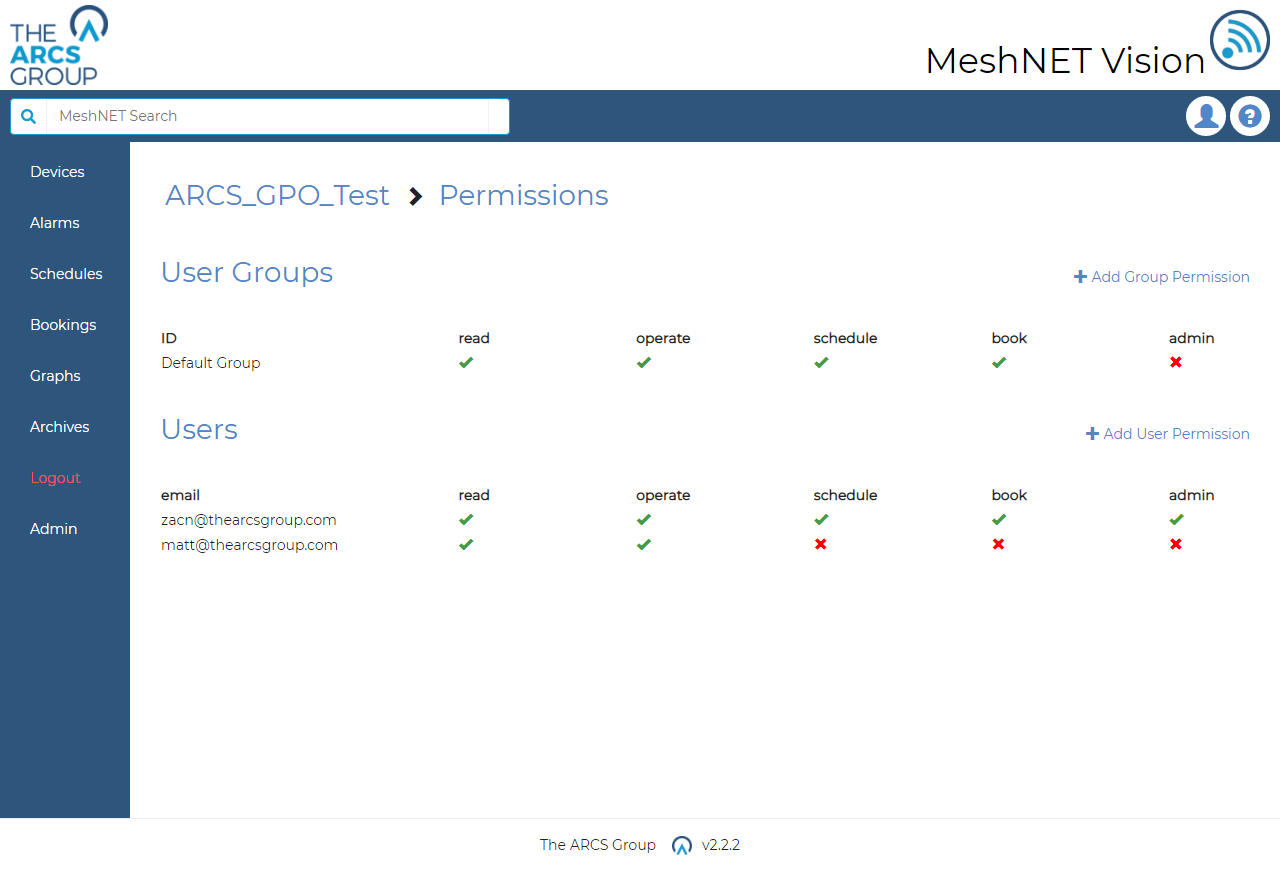
To view the permission settings for a device group, users can select the "Permissions" link with the eye next to it at the top of the device group's page (see Figure 13). Note the "Permissions" link will only exists for users with admin permissions for the group. Selecting this link will take the user to device group's permissions page such as the one seen in Figure 42. From here admins of the device group will be able to see the permission settings for user groups and individual users that have been set on the device group. Ticks indicate that a permission flag has been set while crosses indicate that a permission flag is unset.
Creating Permissions#
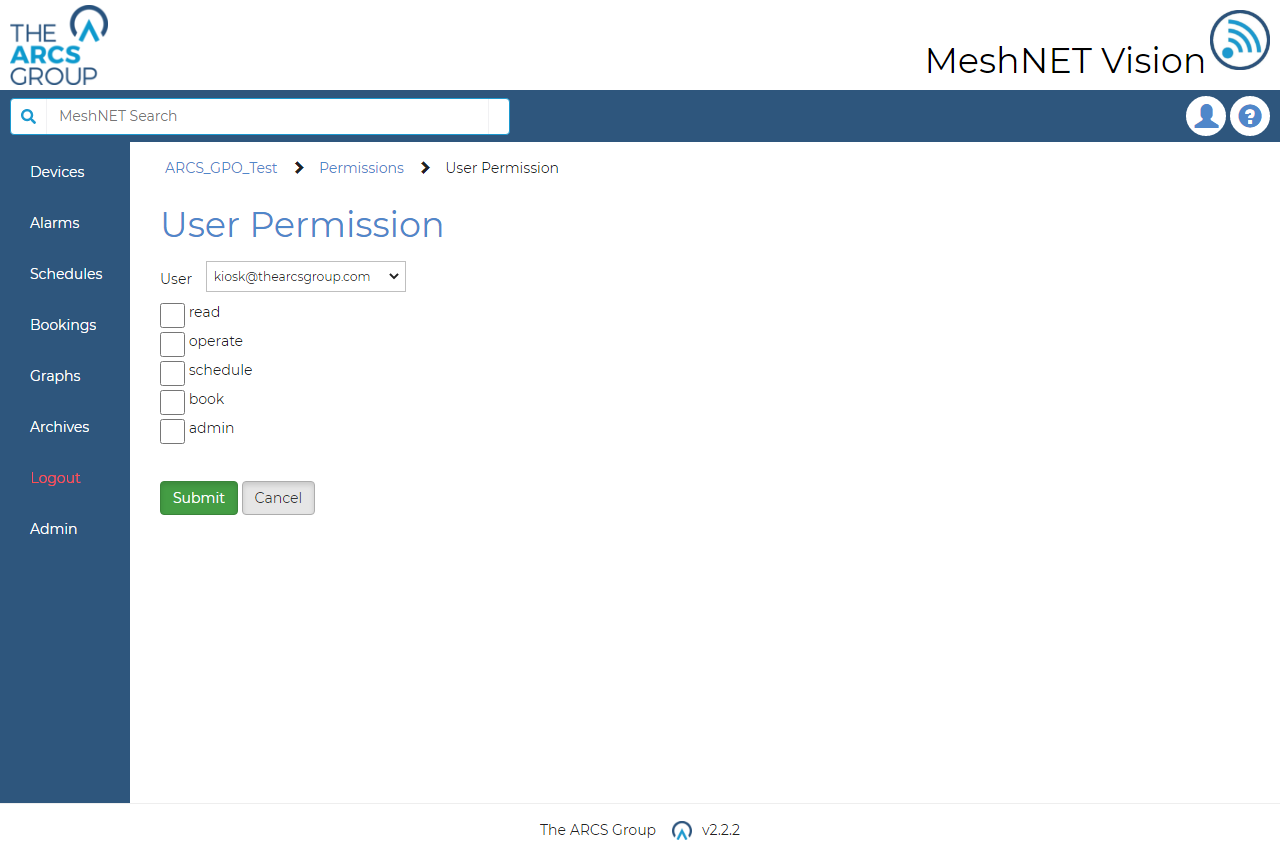
To create a new permission setting for a user group or individual user select the "+ Add Group Permission" and the "+ Add User Permission" respectfully on the permission setting page (see Figure 42). In this example the "+ Add Group Permission" link is absent as no more groups exist in the system to set permissions for. This will also occur for the "+ Add User Permission" when a permission setting is created for every user. Clicking this link will take the admin to the new permission page (see Figure 43) where they may select either the ID of the user group or the email of the user the permission setting for and check the desired permission flags. On submission the admin will redirected to the device group's permission page where they should see the new permission in the list.
Editing Permissions#
To edit a permission setting admins can select the permission setting from the list on the users page (see Figure 37) or from the list on a user groups page (see Figure 40) or from the permission setting page of the device group (see Figure 42). This will take users to the same page as the create permissions page (see Figure 43) where users may edit for whom the permission is assigned for and the permission flags.