Alarms
Alarm Life Cycle#
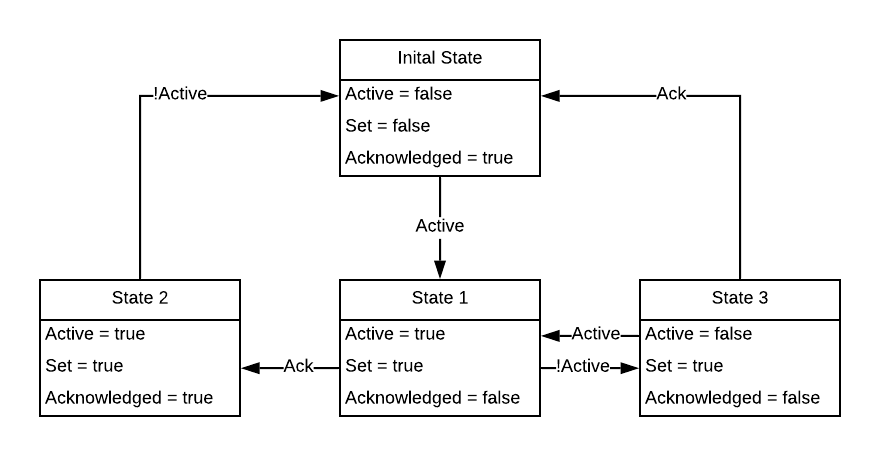
The Alarm summary page shows all the alarms active in the current system. Alarms follow the following lifecycle.
Alarm Levels#
| Level | ID | Description |
|---|---|---|
| OK | OK | Alarm is Resolved and not Active |
| 0 | Information | No Action Required |
| 1 | Warning | Action Required not immediately should be monitored |
| 2 | Urgent | Action Required Immediately and should be monitored |
| 3 | Critical | Action Required Immediately and requires confirmation of resolve |
Alarm Summary#
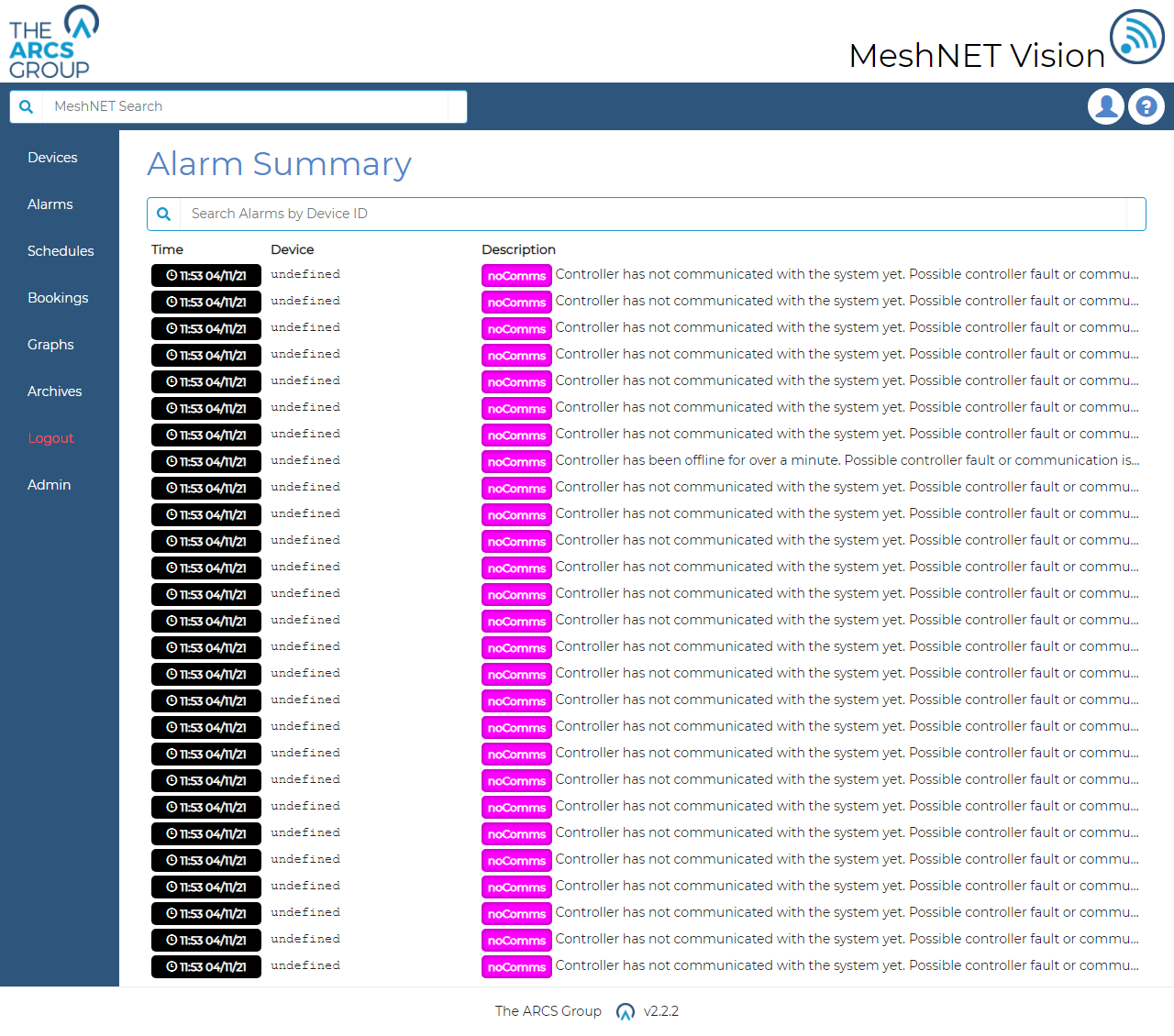
The Alarm summary page (see Figure 6Figure 18) shows all the active alarms for every device. Alarms can be selected individually from the checkbox or all alarms can be selected from the checkbox in the header. Once alarms are check they can be acknowledged with the ack button.
Alarms can also be acknowledged (see Figure 19) from the device page but only individually.
Global Alarm Settings#
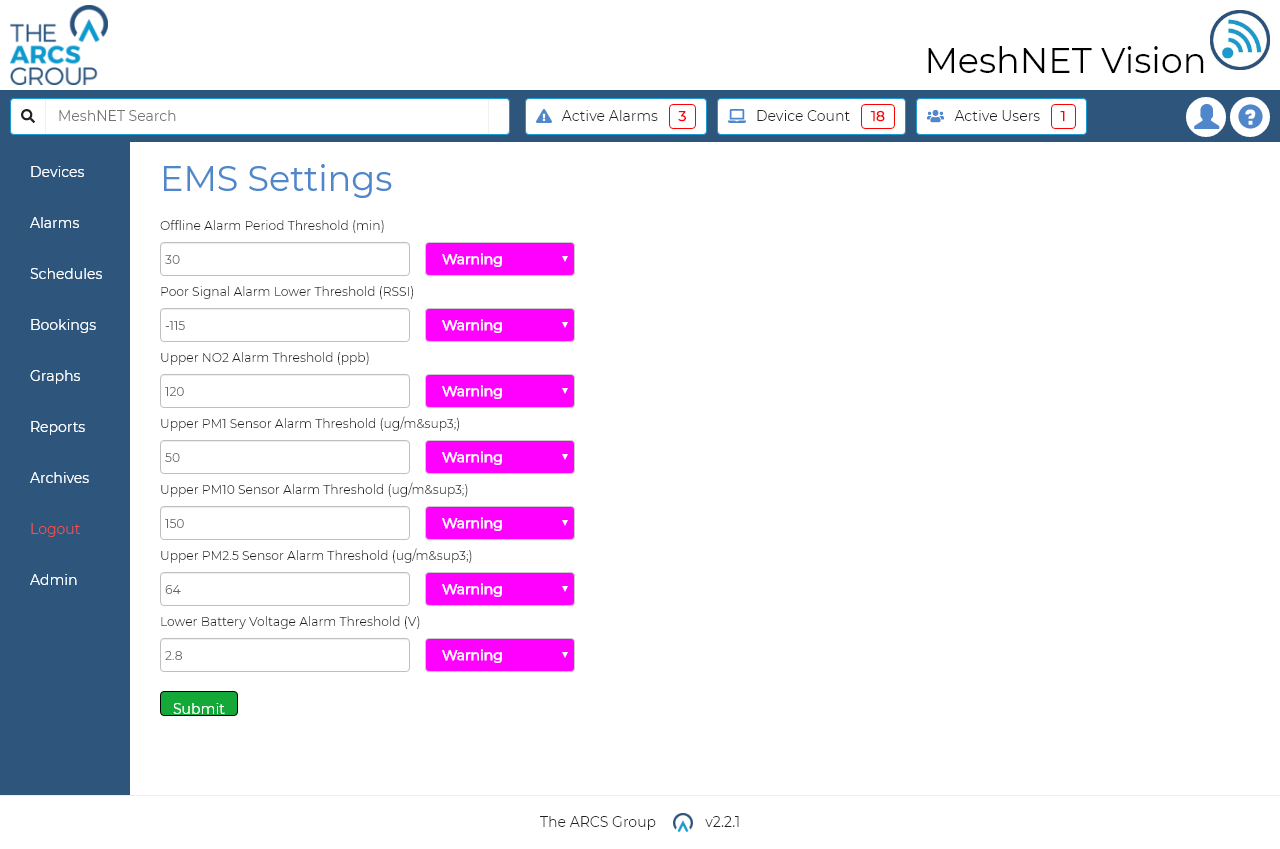
Alarms can be assigned levels at a device level. By clicking the gear icon next to the device name from the home page (see Figure 2) you will be redirected to the alarm settings page for that device type.
The Device Type alarm settings hold the global settings for the device type which includes the Alarm thresholds and the level of the alarm. The alarm levels can only be edited from this page.
Group Alarm Levels#
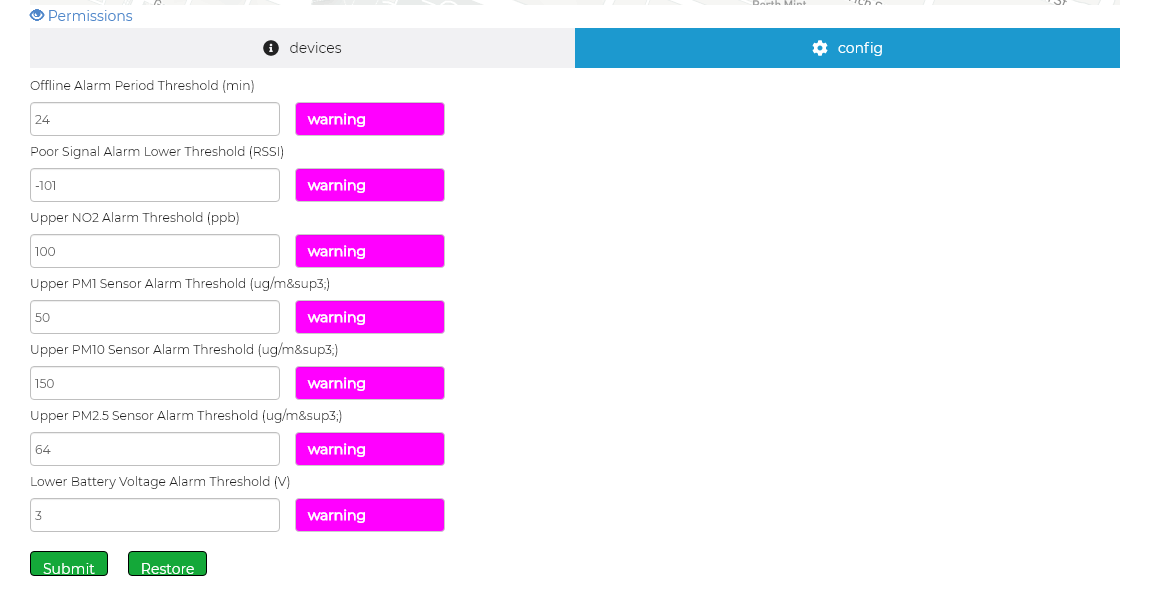
Groups can override the global alarm level thresholds. These can be updated by clicking the config tab and updating the alarm levels (see Figure 21.). Group alarms can also be restored to the global settings by clicking the restore button.
Device Alarm Levels#
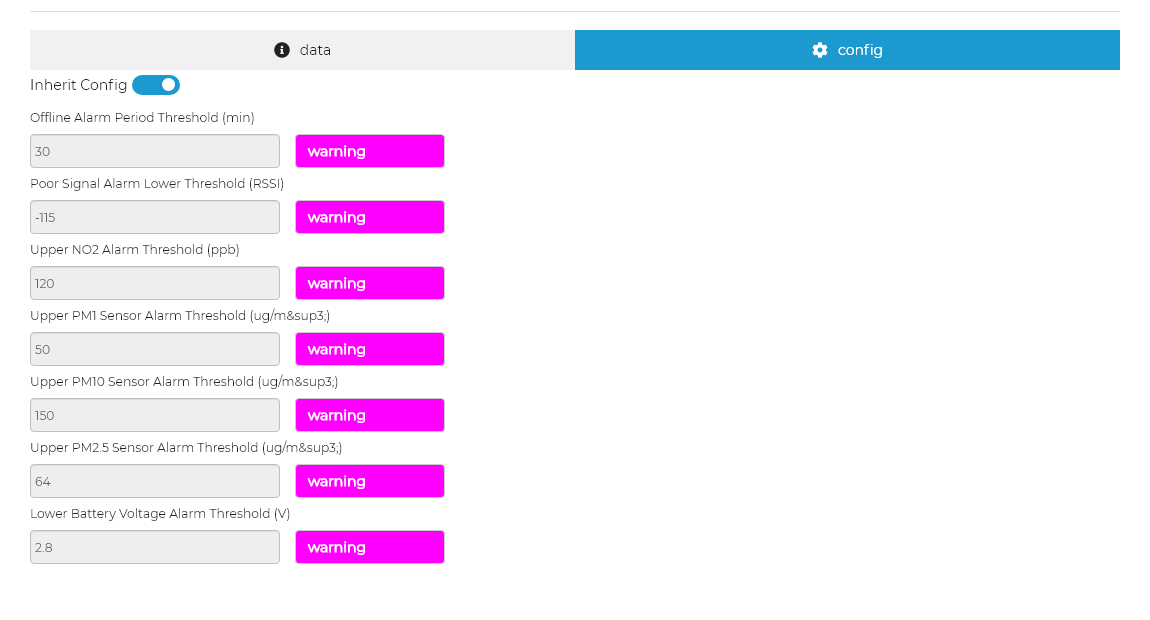
Alarms levels for each device can also override the levels of the group (see Figure 22). This can be done by sliding the inherit config switch to left and updating the thresholds for this device. When the inherit config switch in on the device will inherit the alarms thresholds from it parent group.