Applications
Applications and application links define what networks are connected to the system and which devices communicate through each network. Each application creates a new gateway in the system which receives and transmits messages to the network. Devices with links to these applications will accept incoming messages from them that update the state of them or their group. App links also define which networks the system sends uplink command messages for a device through.
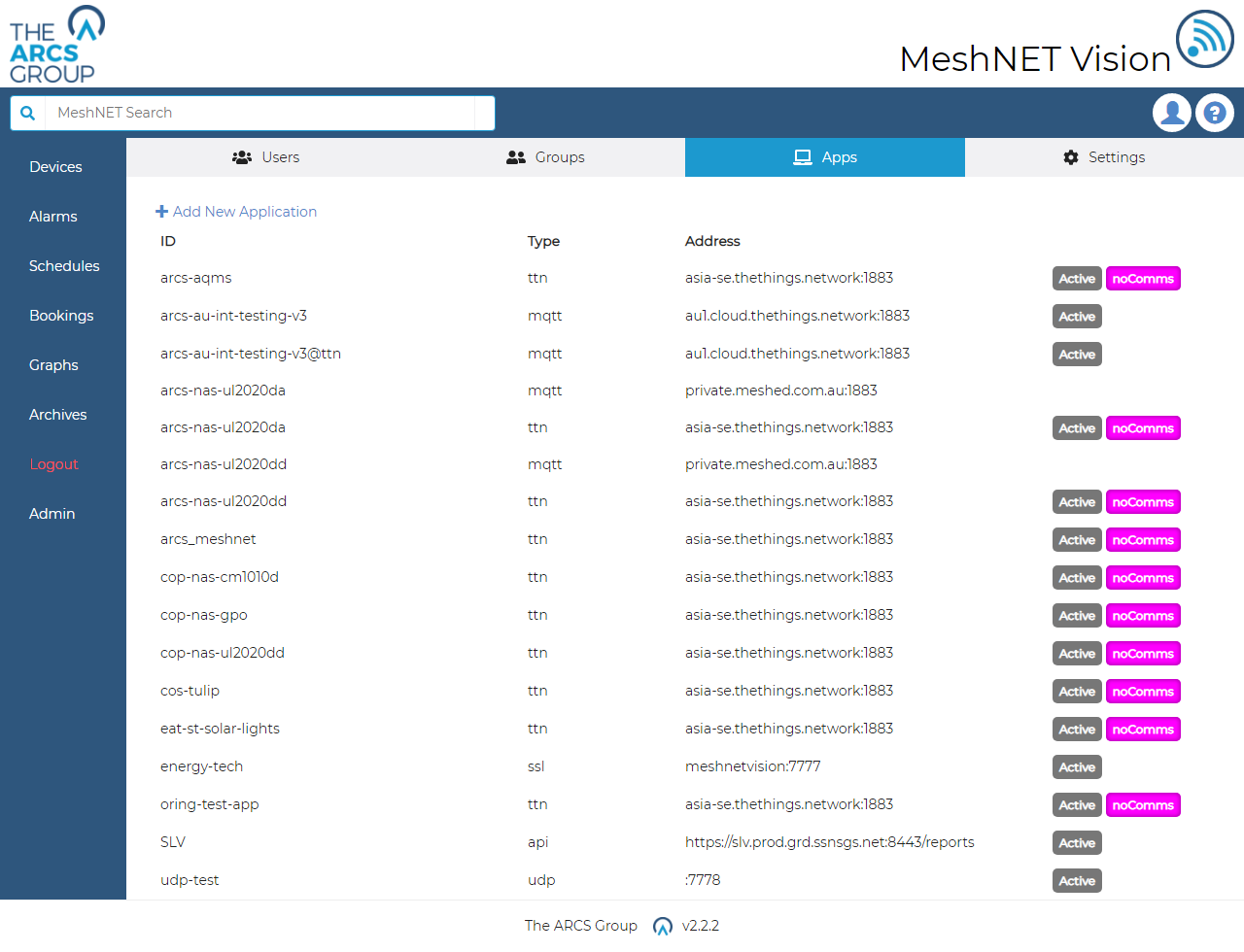
To view the current applications users can navigate to the applications page by select the "Apps" link in the navigation dropdown menu (see Figure 3). The applications page shown in Figure 30 lists all currently configured network applications including the apps ID, network type, address and current state. The Active badge indicated that the application is currently active and ready to receive and send messages. Applications with a noComms badge next to them failed to establish a connection when the system booted. Clicking on an application will take the user to the application setting page where applications parameters can be updated (see Figure 31). Users must supply:
- The applications ID which corresponds to the ID registered to the TTN network
- The application protocol. This currently supports either TTN or MQTT (For TTN stack v3, DALI C).
- The URL address which includes the domain and port number only.
- The applications access key which is supplied by the TTN network and ensures secure access.
- If the application is activated or not. Setting this will cause the system to try and establish a gateway connection on submission. If the application fails to connect to the network an error will be displayed as seen in Figure 31.
From this settings page user can also delete applications from the system. To create a new application user can click the link marked "+ Add New Application" on the top right of the applications page (see Figure 30).
Device can be linked to applications by creating app link entries when creating a device at the bottom of the form (see Figure 16). Users can use the selector to select the ID of the application they want to link the device to and click the "+" button to the left to add and entry for that application. This will cause an input box to appear for that application where the user should supply the ID the device is registered to on that applications network. I.e. the devices TTN application ID. Users can also add application links to existing devices by clicking the "Edit" link at the top right of the device's page (see Figure 19 and Figure 29) which takes them to the same form as in Figure 16 where they can add more application links.