Bookings
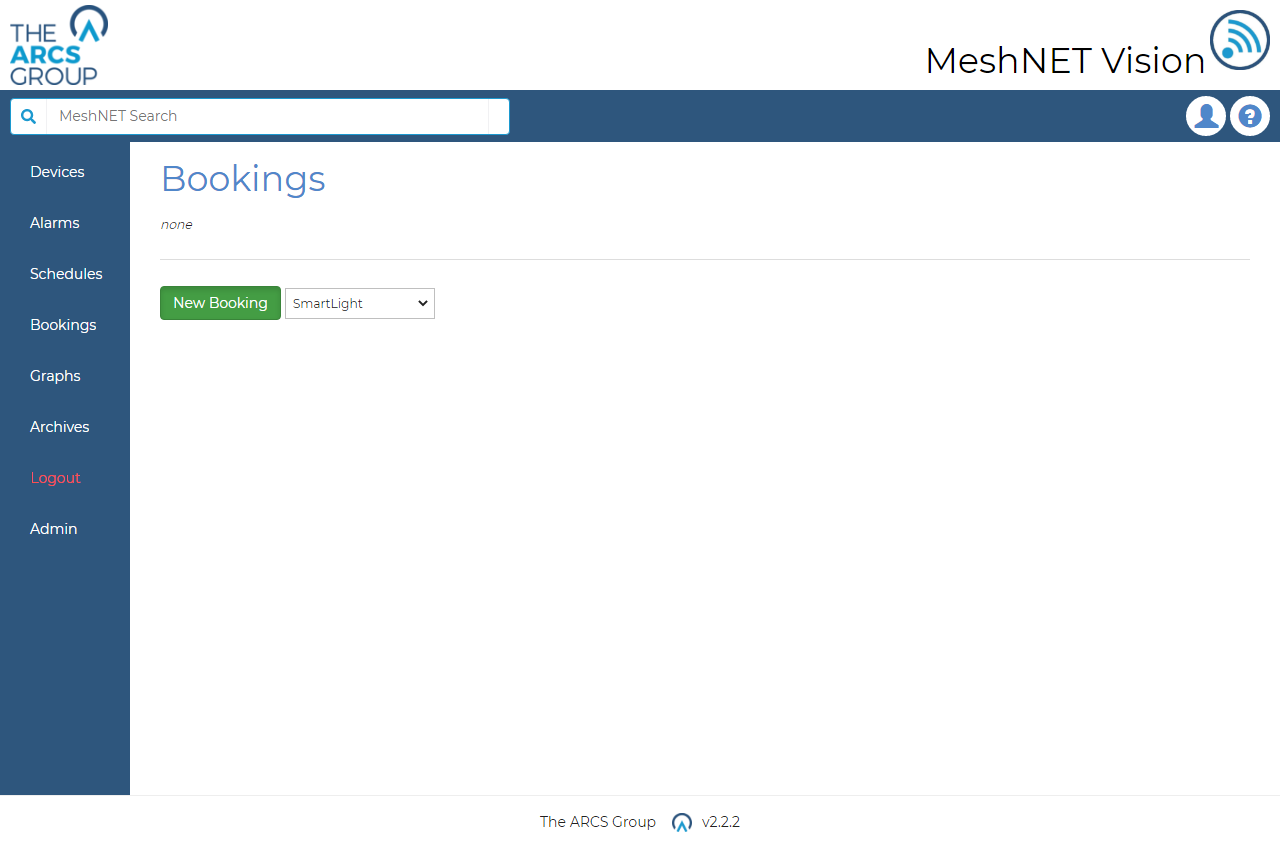
Bookings allow another mechanism for automatically controlling device and groups but over any time period. Using bookings devices or groups can be reserved and placed in a fixed state over any calendar period. Over this period the controls of the booked items are disabled until the booking either ends or is deleted. To manage bookings users may select the "Bookings" link in the dropdown navigation menu (see Figure 3) which will take them to the bookings page seen in Figure 27. This page shows a list of all active and pending bookings including the bookings name, the ID of the item it's for, the start and end dates and options to edit or delete. Below the list is a selector for creating a new booking for the selected device type.
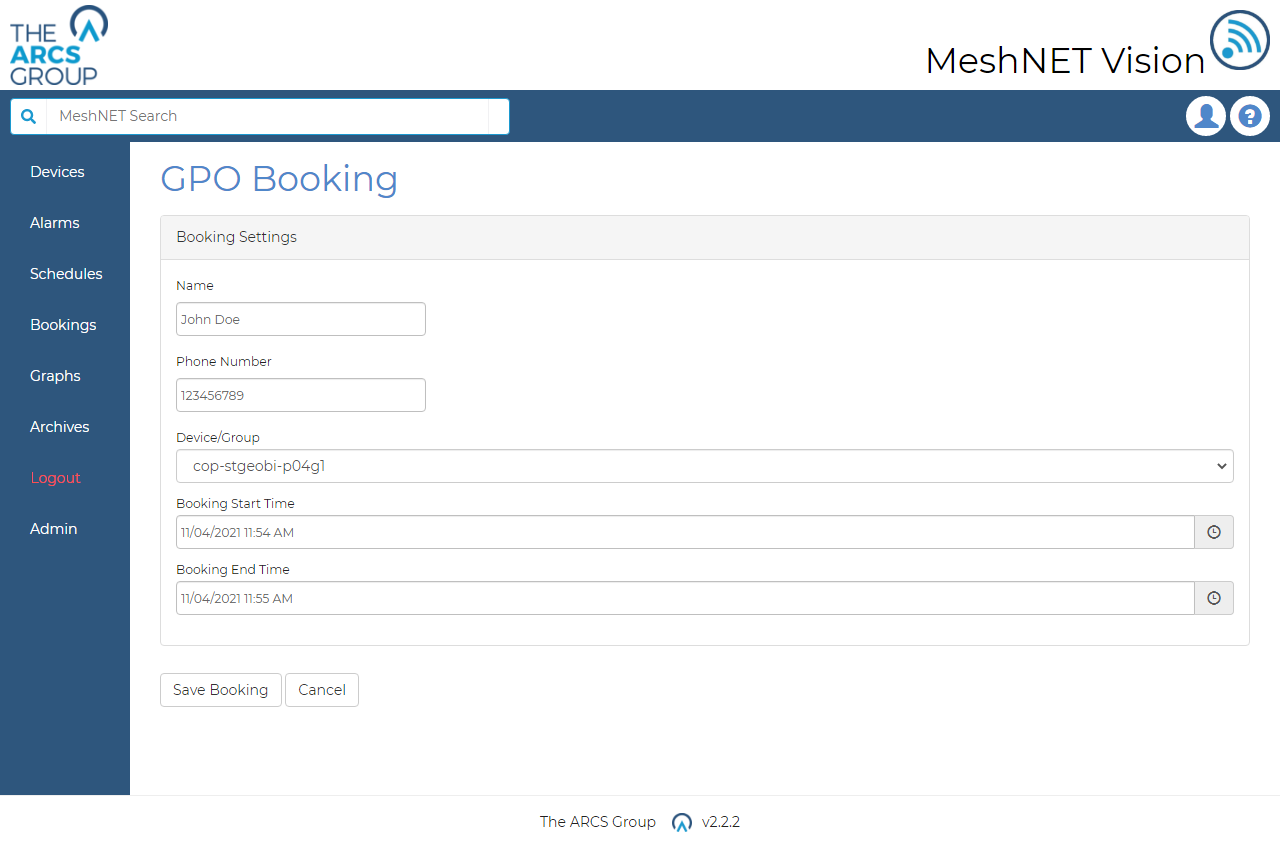
Clicking the "Edit" links or the "New Booking" button will take the user to the bookings settings pages where user may edit/create the parameters of the booking. Depending on the device type the options for the items state during the booking period may change. These device specific options are explained further in the devices related section. Figure 28 shows an example of the booking settings page for the ARCS_GPO_TEST group's Christmas light booking through December. A phone number must also be added to allow other users to contact the booking's creator or manager.
When a booking is active a banner will appear on the items page informing the user as seen in Figure 29. In this example the device cop-stgeobi-p04g1 is currently booked. Notice also all control buttons on the control panel are disabled while this banner is displayed. When the booking ends the booking banner will disappear and the controls will become operational again.